

Digital Safety
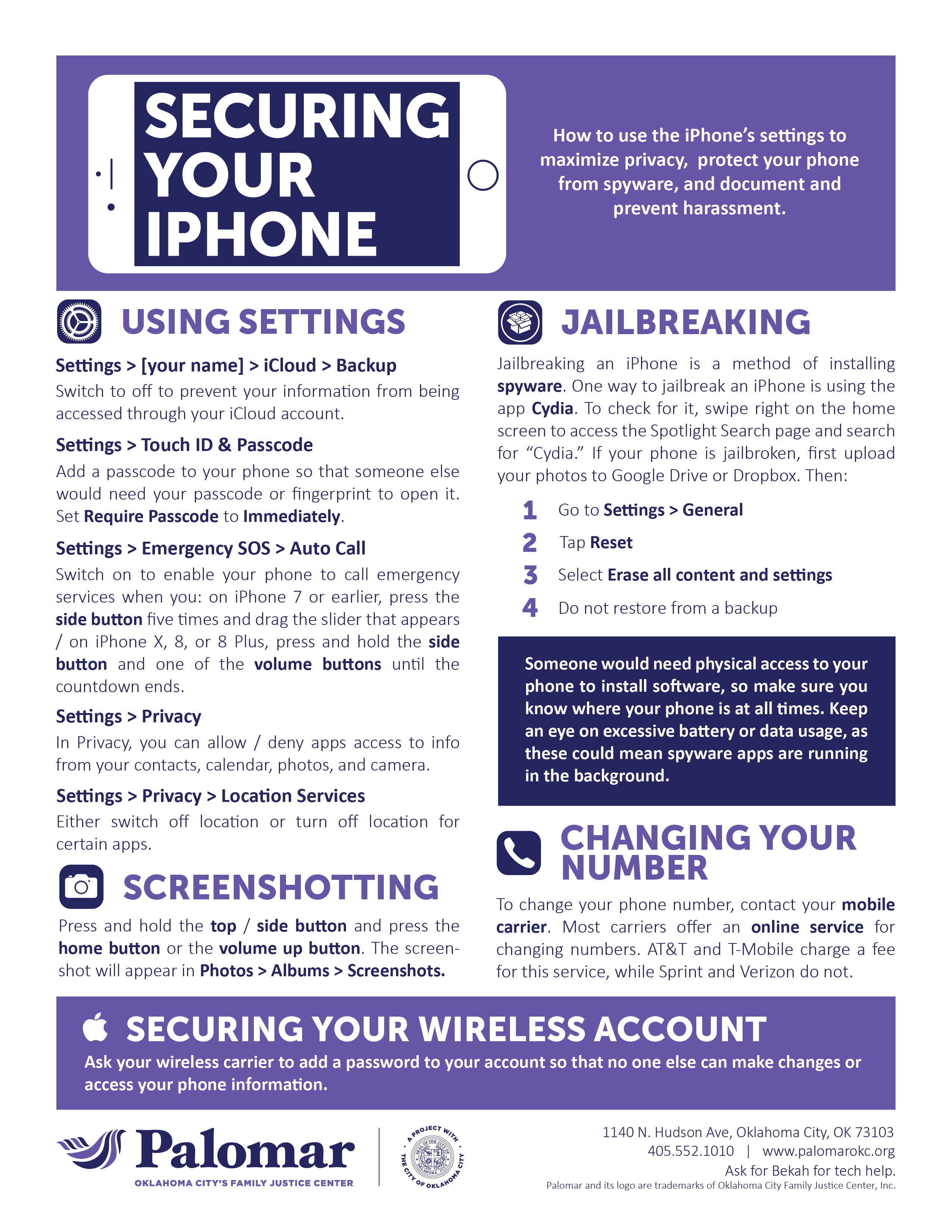
Abusers may use technology to monitor, harass, or otherwise maintain power and control over you. This can make it dangerous to use your phone or computer to stay connected and/or seek help.
Digital Safety Guide
These sheets cover securing devices, like your phone, computer, and other smart devices, as well as tips for protecting your activity online. Use these sheets to create a plan for using technology safely. Click the links below to download or print each sheet.
- Securing Your iPhone
- Securing Your Android
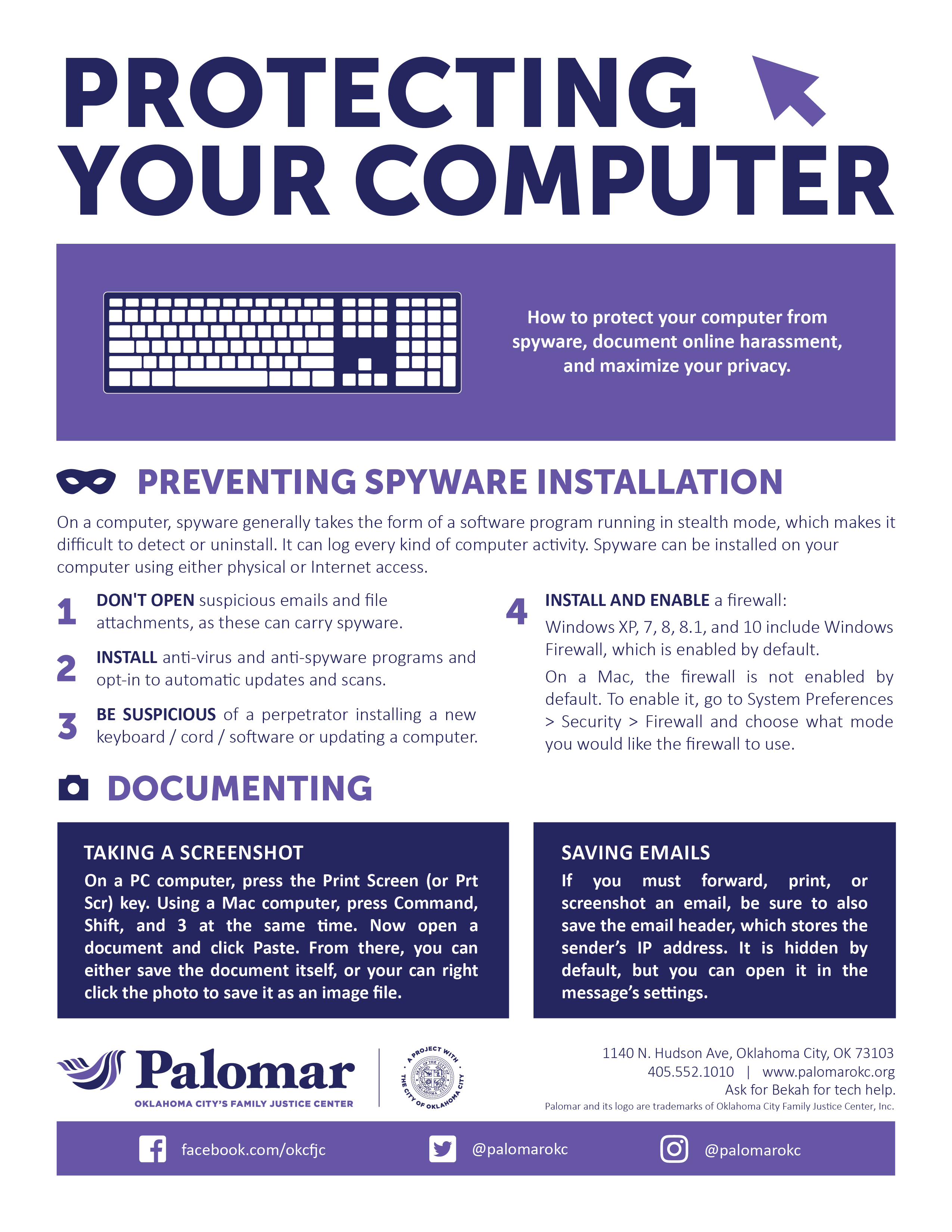
- Protecting Your Computer – Preventing Spyware Installation & Documenting
- Protecting Your Computer – Increasing Browser Privacy & Using WIFI
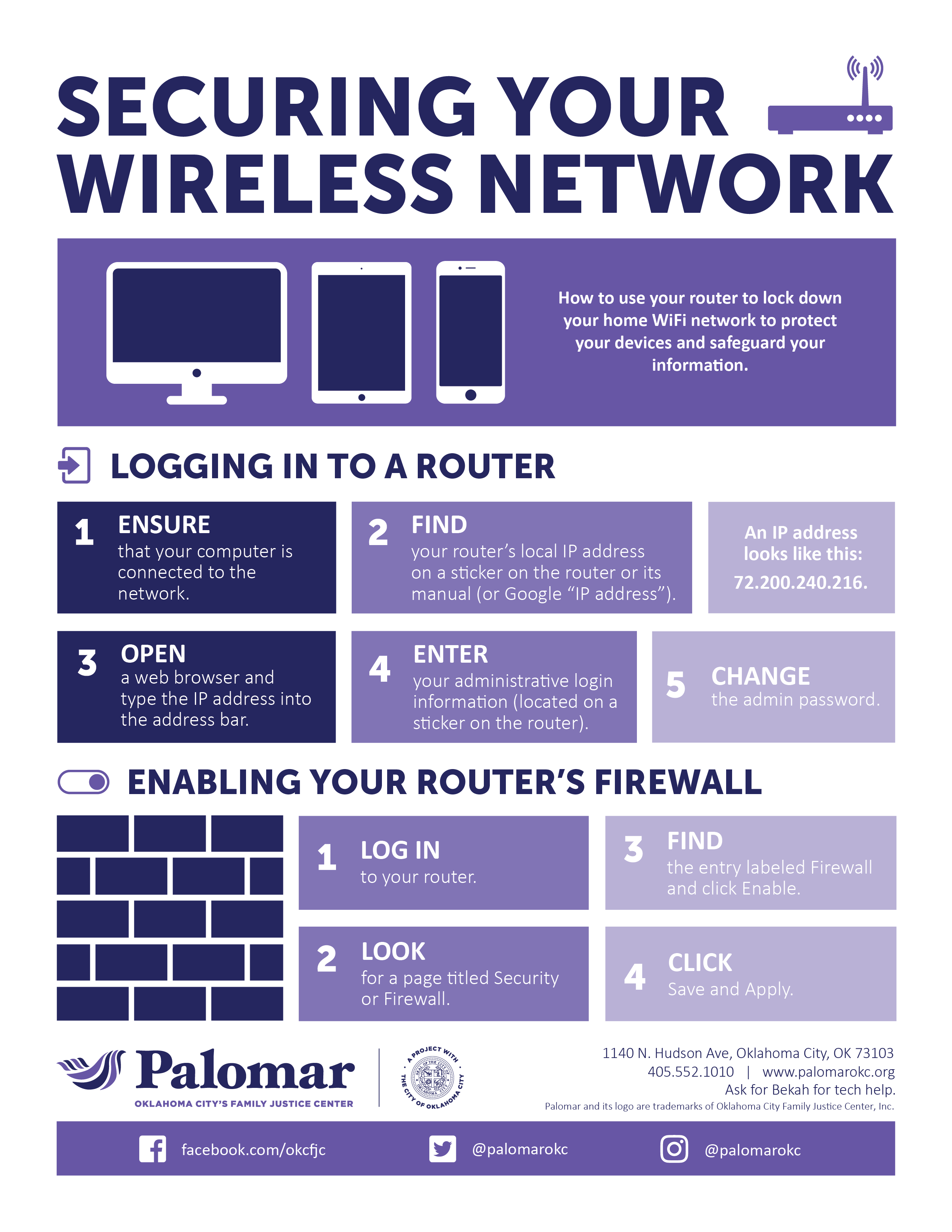
- Securing Your Wireless Network – Logging in to a Router/Enabling Router Firewall
- Securing Your Wireless Network – Enabling WPA
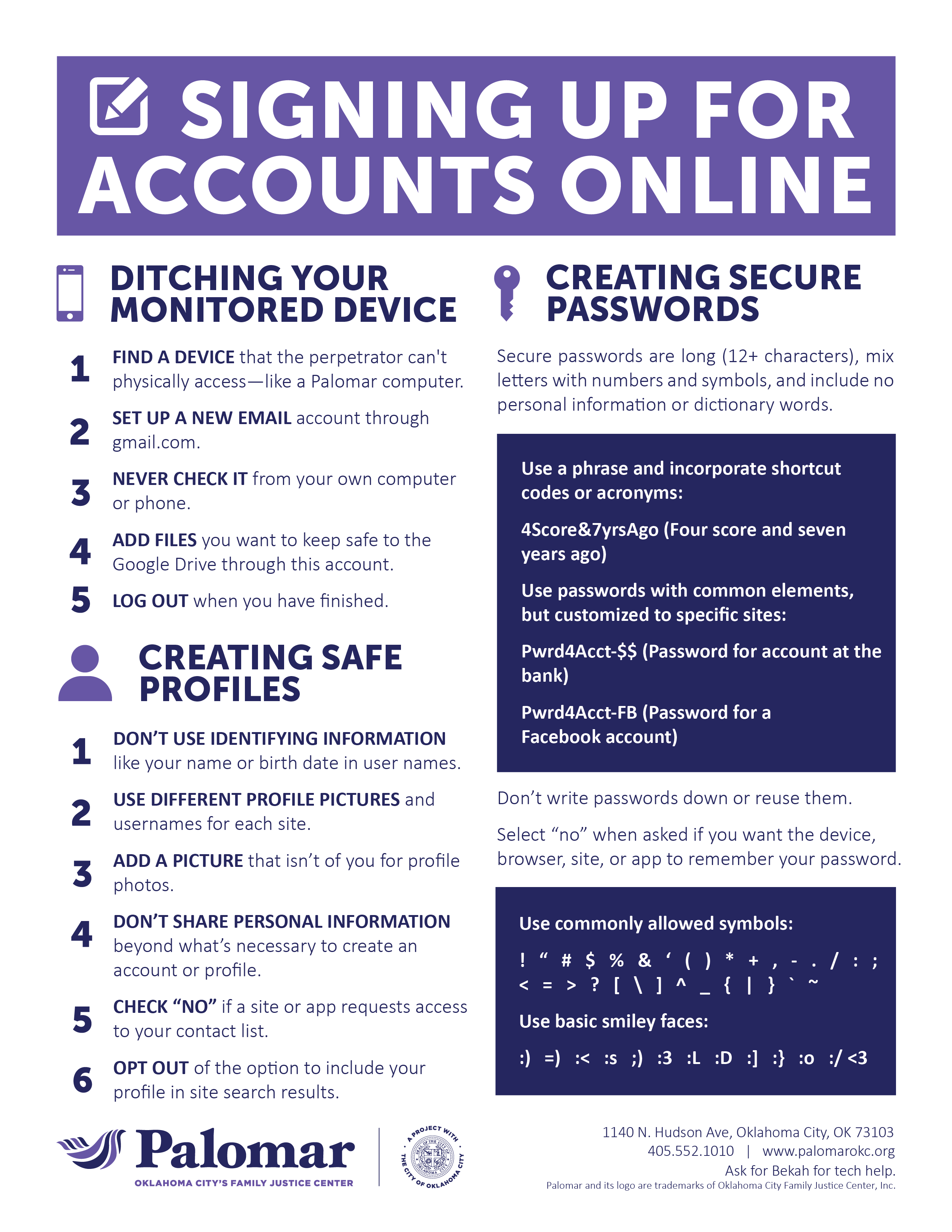
- Signing Up for Accounts Online – Securing Profiles & Passwords
- Signing Up for Accounts Online – Enabling Two-Factor Authentication & Online Banking
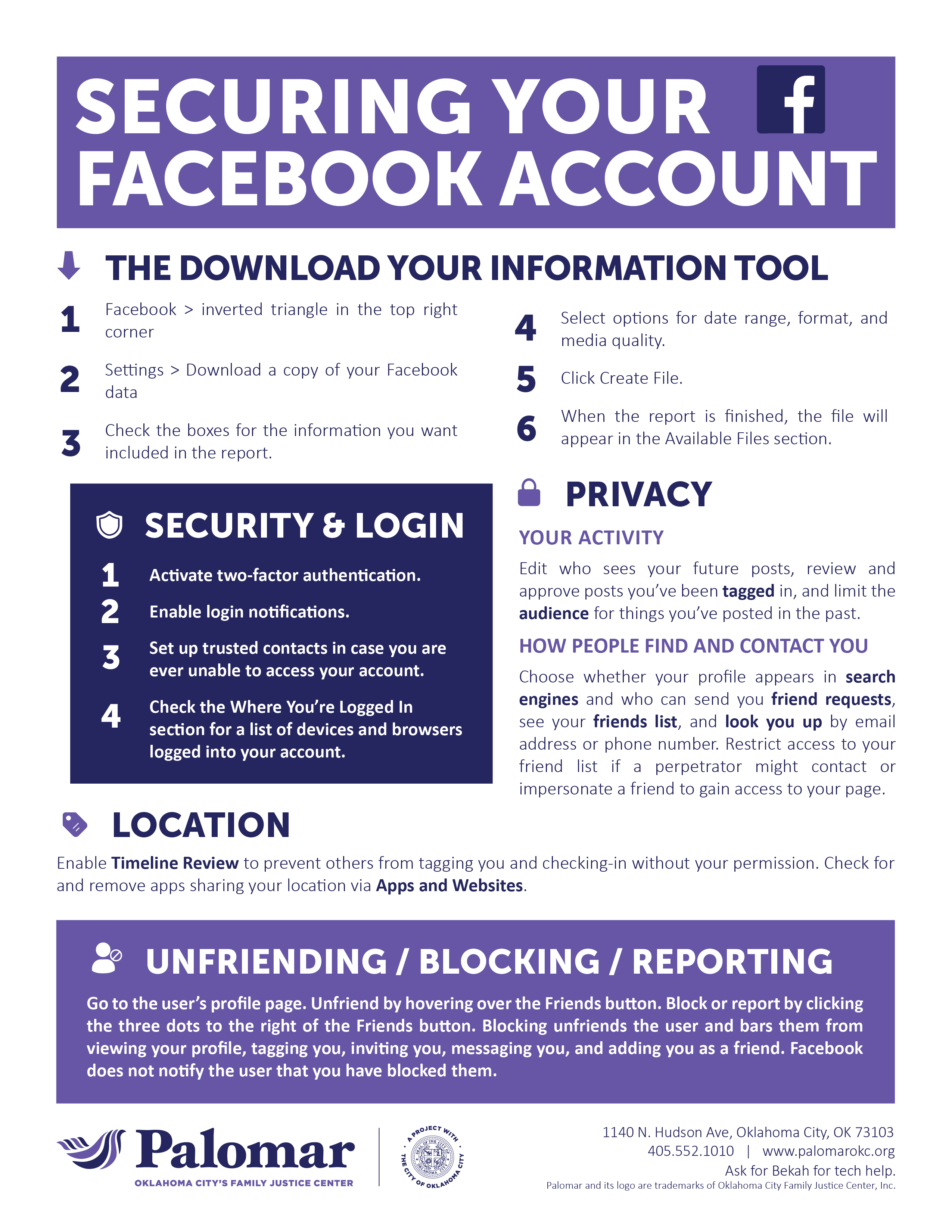
- Securing Your Facebook Account
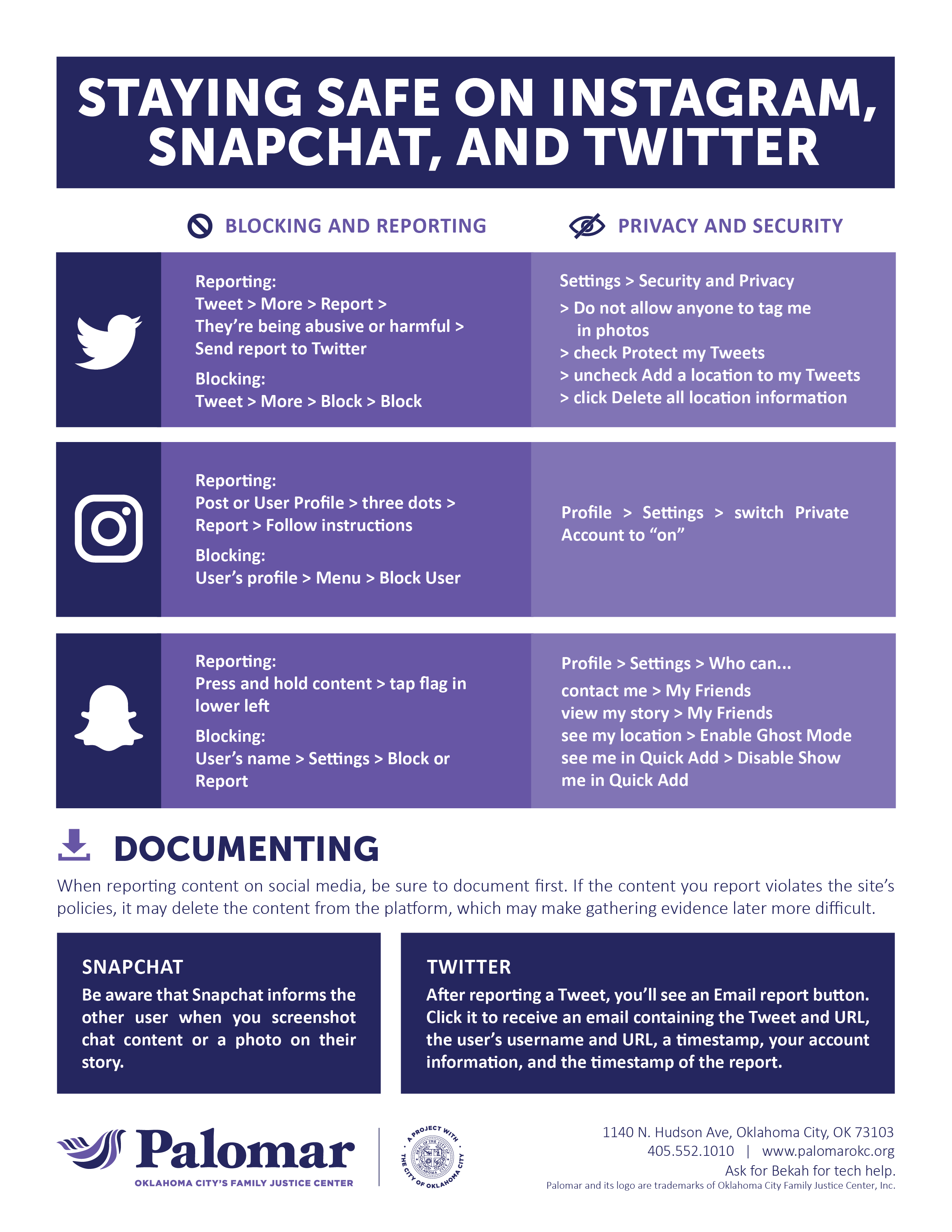
- Staying Safe on Snapchat, Instagram, and Twitter
- Taking Control of Your Smart Home
- Palomar’s Pick for Digital Safety
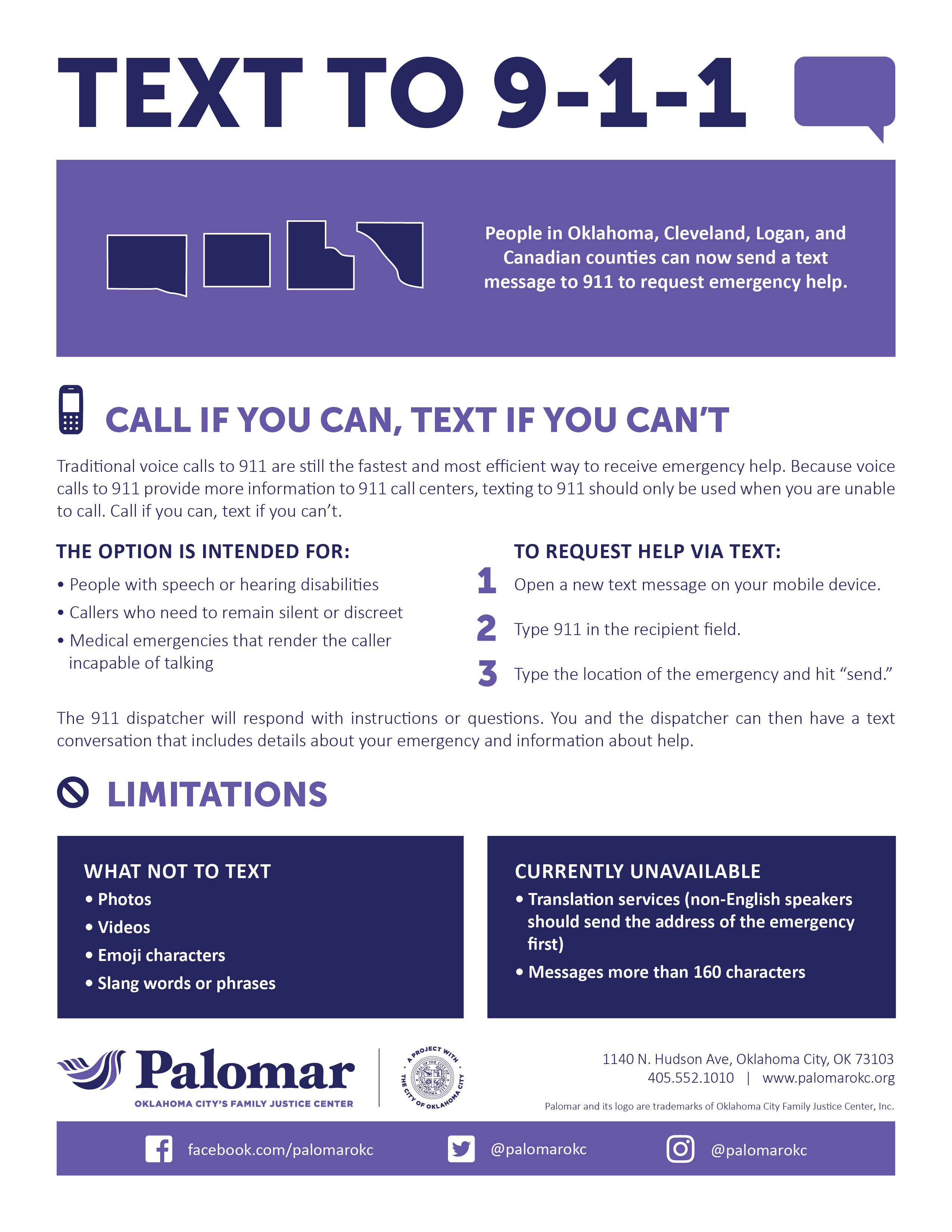
- Text to 9-1-1
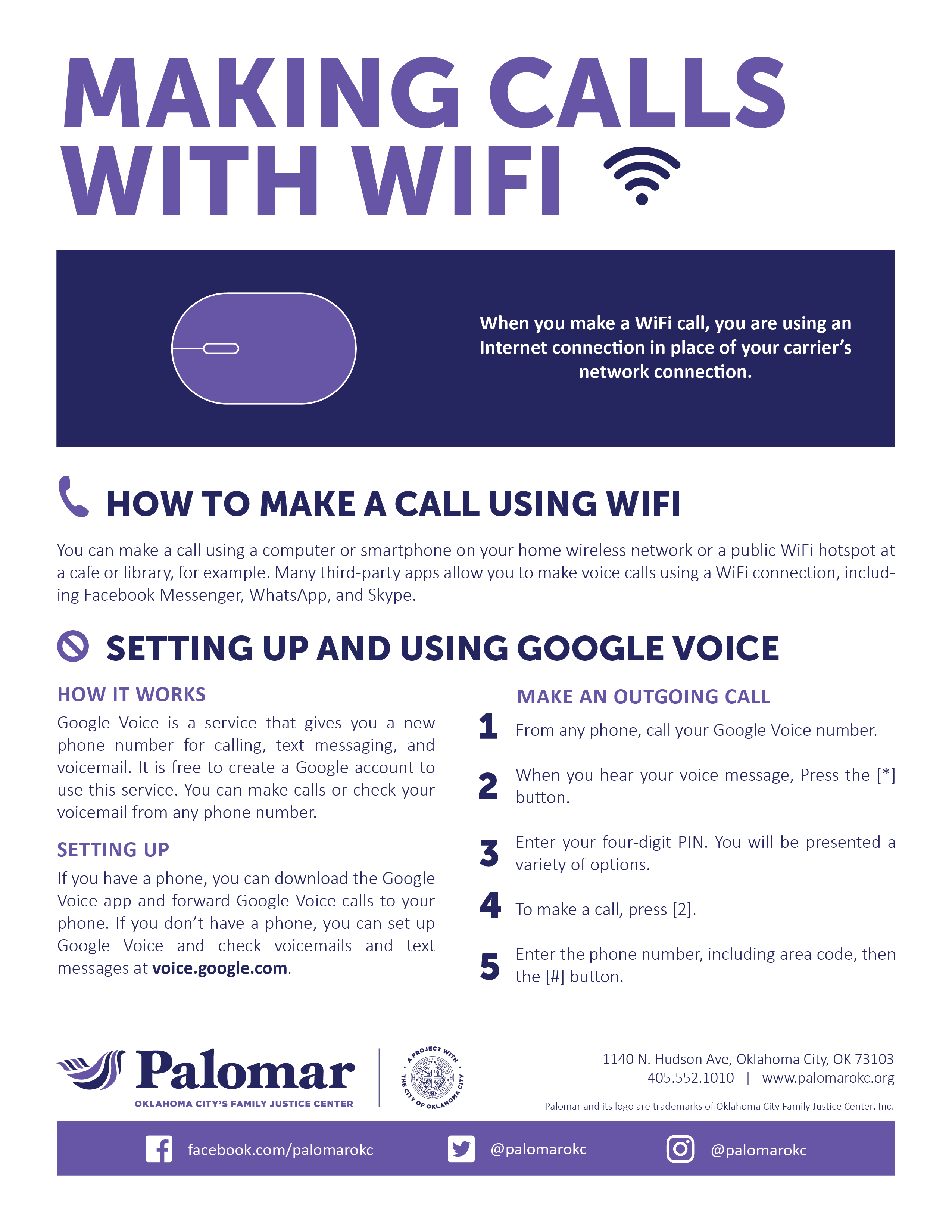
- Making Calls with WIFI
- Digital Safety Checklist






Browser Safety
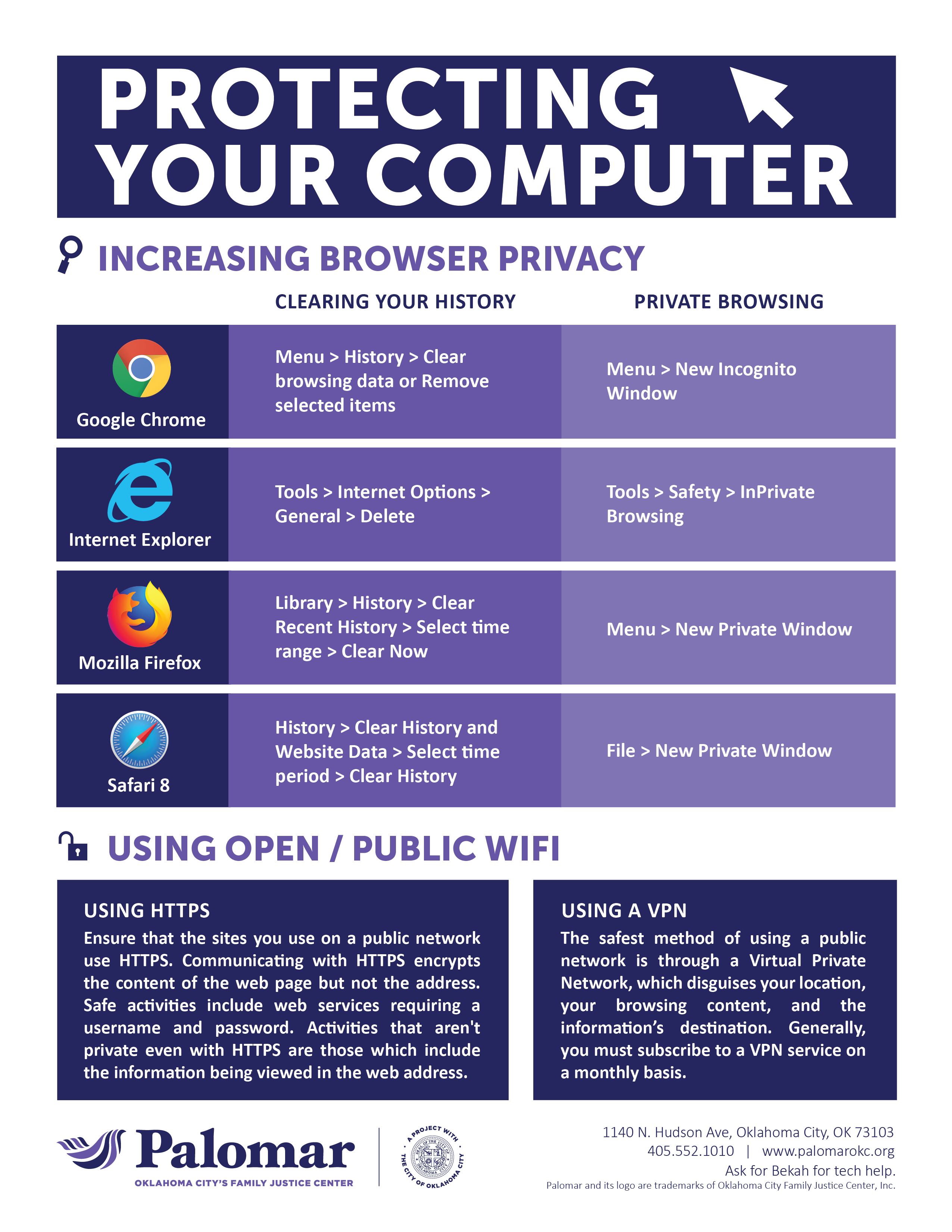
The most popular browsers, Google Chrome, Mozilla Firefox, Internet Explorer, and Safari all provide privacy settings for users. If you are concerned that someone is monitoring your device activity, using these options can increase your privacy and safety.
Google Chrome:
- Click on the Chrome menu icon (three dots in the upper right corner).
- Click “New incognito window.”
- A new window will open. To prevent the browser from collecting history, you must browse in this window.
Mozilla Firefox:
- Click the menu icon (three lines) in the top right corner.
- Select “New Private Window.”
- A new window will open. To prevent the browser from collecting history, you must browse in this window.
Internet Explorer:
- Click the gear in the top right corner.
- Select “Safety.”
- Select “InPrivate Browsing.”
- A new window will open. To prevent the browser from collecting history, you must browse in this window.
Safari:
- Click “File.”
- Select “New Private Window.”
- A new window will open. To prevent the browser from collecting history, you must browse in this window.
Clearing Browser History
Note that if someone is monitoring your computer use, deleting your entire browser history may appear suspicious.
Google Chrome
- Click on the Chrome menu icon (three dots in the upper right corner).
- Select “History.”
- To delete your entire history: Select “Clear browsing data.”
- To delete certain pages: click the boxes next to the pages you want to remove.
- Click “Delete.”
Mozilla Firefox
- Click the lbrary icon in the top right corner.
- Select “History.”
- To clear your entire history: Select “Clear recent history.”
- Select the time range for the history you want to clear.
- Click “Clear now.”
- To delete certain pages: Click “Show all history.”
- Select the pages you want to remove.
- Press the delete key on your keyboard.
Internet Explorer
To delete your entire history:
- Click the gear in the top right corner.
- Select “Safety.”
- Select “Delete browsing history.”
- Check “History.”
- Click “Delete.”
To delete certain pages:
- Click the star in the top right corner.
- Select the History tab.
- Right-click the pages you want to remove.
- Select “Delete.”
Safari
- Click “History.”
- To delete your entire history: Select “Clear History…”
- Select the time range for the history you want to clear.
- Click “Clear History.”
- To delete certain pages: Select “Show all history.”
- Select the pages you want to remove.
- Press the delete key on your keyboard.
Private Browsers for Phones & Tablets
For more privacy when browsing on your smartphone, you can download a privacy browser app. These apps give you more control over your history and data when you’re browsing. See links to a few of our suggested apps below.
DuckDuckGo
Ghostery
Tor Browser
Note that these options do not prevent remote spying or monitoring if someone is using spyware software. Learn more about spyware and find other online privacy tips at techsafety.org/resources-survivors.